Pages let you switch from a pageless view to a structured print-style layout—great for long works, manuscripts, papers, submissions, or anything where pagination matters for your work.
Note: Pages can be viewed on both desktop and mobile, but page layout settings are only accessible on desktop.
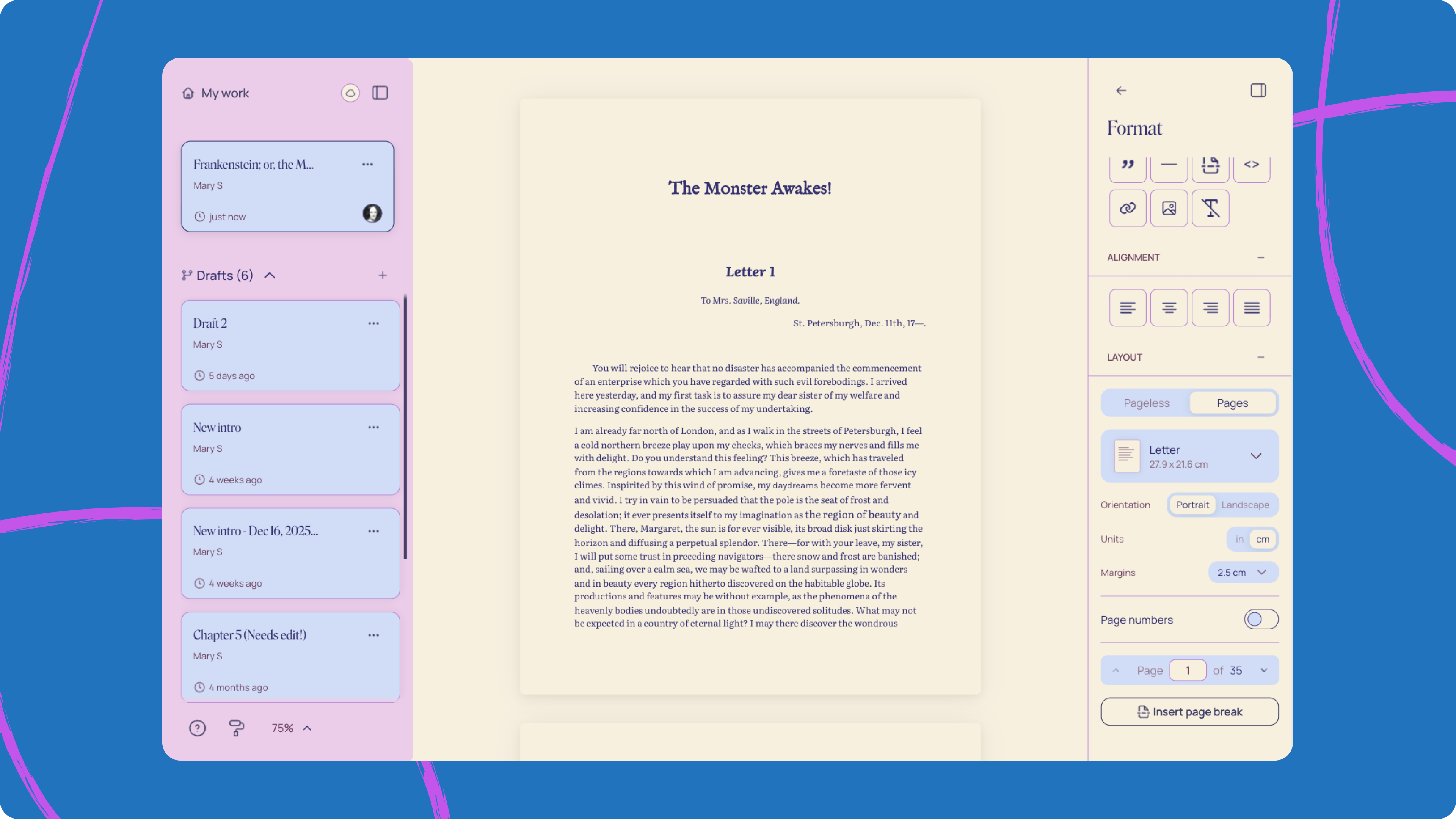
How to enable pages
To enable pages, open the Format panel in the right sidebar, then scroll down to the Layout section. You’ll see two options:
Pageless (default)
Pages
Select Pages to use page-based formatting for your document or draft.
Page settings
Once pages are enabled, additional options will appear below:
Page format: Set your document size (e.g. A4, Letter, etc.)
Orientation: Select Portrait or Landscape
Units: Choose your preferred measurement system
Margins: Adjust the spacing around your text
Page numbers
You can toggle page numbers on or off. If toggled on, you can choose:
Placement: header or footer
Number alignment: left, center, or right
Your numbering style:
Standard numbers (1, 2, 3.)
Roman numerals (i, ii, iii.)
Letters (a, b, c.)
Whether to show a number on the first page of your document
Note: Page numbers do not export with your work
More controls
You can navigate between pages using the controls near the bottom of the sidebar on desktop:
Use the left and right arrows to move page by page, or type a page number directly into the center field (e.g. the number displayed between “Page” and “of”) to jump directly to a specific page.
You can also insert page breaks manually to control layout and flow.
You can toggle back to pageless view at any time—your pages formatting settings will be preserved if you toggle pages back on.
By clicking Reset to defaults, you will revert back to pageless view, and pages formatting will also revert back to defaults.
Page settings and drafts
If you enable pages on your main document, the layout will carry over to any drafts you create. You can also set pages independently within a draft—those changes will apply only to that draft and won’t affect your main document’s formatting.
Sharing and exporting
Permissions: Collaborators invited with specific collaboration roles can interact and change page settings.
Collaborators with the Can merge role can set and change pages formatting in documents
Collaborators with the Can edit role can set and change pages formatting in their drafts
You can export to .DOCX or .PDF with your page settings intact.
Pages in the Reader view
Page formatting isn’t available yet in the Reader view, but will be coming in the future.
Was this article helpful?
That’s Great!
Thank you for your feedback
Sorry! We couldn't be helpful
Thank you for your feedback
Feedback sent
We appreciate your effort and will try to fix the article