The notification center, available from both the dashboard and editor, makes it easy to stay up to date on what’s happening across your documents. We send notifications when:
You're invited to a document
Your role as a collaborator is changed
A draft in a doc you're collaborating on has been merged
Someone comments on a draft you're collaborating on
Someone replies to one of your comments
When a new notification comes through, you’ll see a small red badge on top of the bell icon. Open the notification and click on any notification to go to its related document or draft.
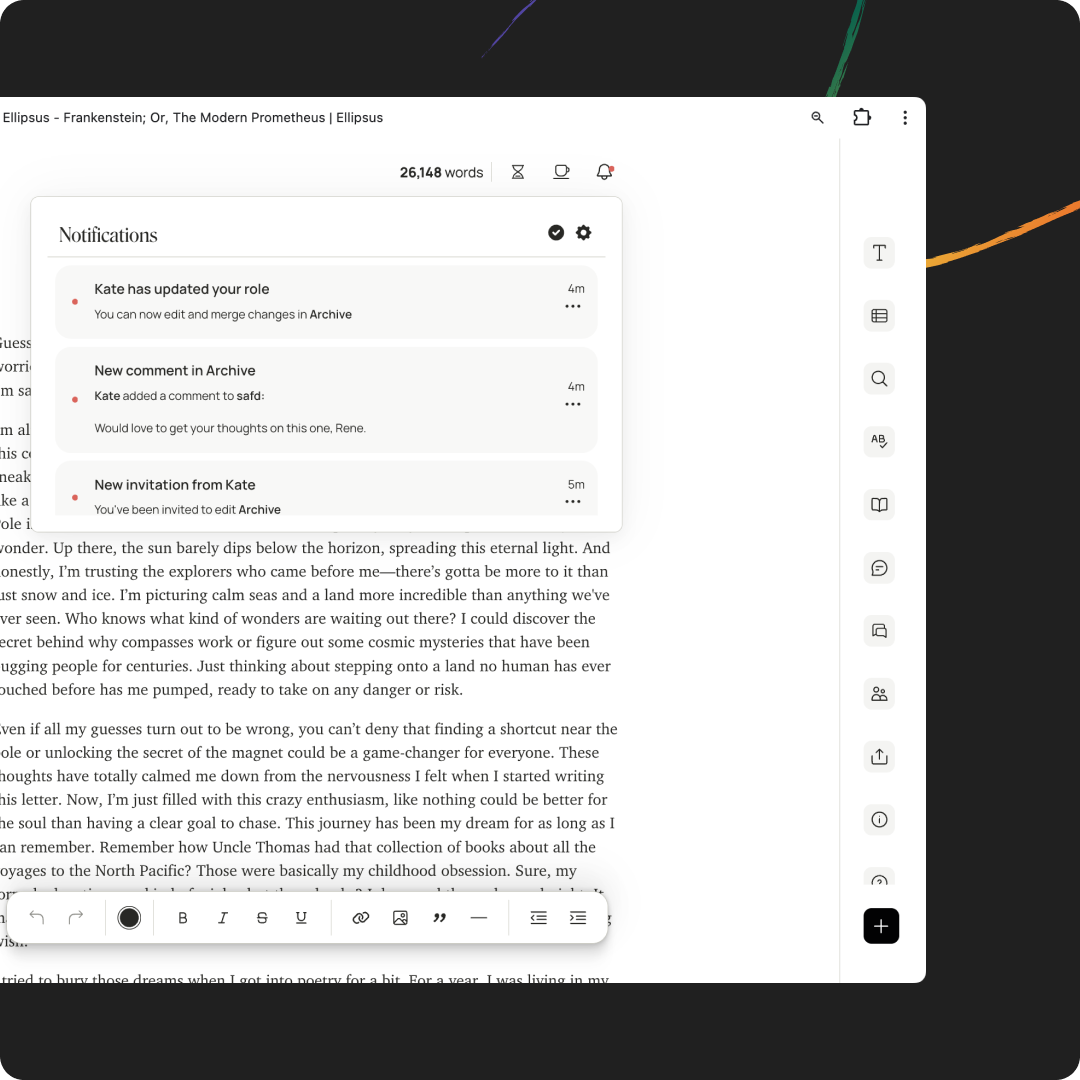
If you want to mark a notification as read, without opening it, click on the three-dot menu next to the notification and select Mark as read. Alternatively, you can click the check at the top of the notification center to mark all notifications as read.
Want a break from notifications? When you work in focus mode, the notification center—and any new notifications—will stay hidden.
Manage your email notifications
We try to make sure our notifications are relevant—never noisy. That’s why we only send emails about comments and replies if you don’t interact with an in-app notification within 20 minutes. Still, we understand if you want to limit the emails you receive!
To manage your notification preferences, click on the bell icon, then select the gear icon. From there, you can view your current notification preferences. When boxes are checked, you'll receive email notifications; when they're unchecked, you won't.
Leaving a shared document
If you no longer want access to a shared draft—or want to stop receiving notifications—you can leave the document at any time.
Open the shared draft
Click Collaborators
Select the gear icon to open the collaborator list
Choose your username
Select Leave document from the dropdown menu
Was this article helpful?
That’s Great!
Thank you for your feedback
Sorry! We couldn't be helpful
Thank you for your feedback
Feedback sent
We appreciate your effort and will try to fix the article