Ellipsus supports granular text styling as well as global styling, giving you complete control over the look and feel of every part of your document, from individual words, to paragraphs, all the way up to full document styles.
TABLE OF CONTENTS
You can format text using the Format panel (the T icon in the right sidebar), or (if enabled) the Desktop formatting bar at the bottom of the screen.
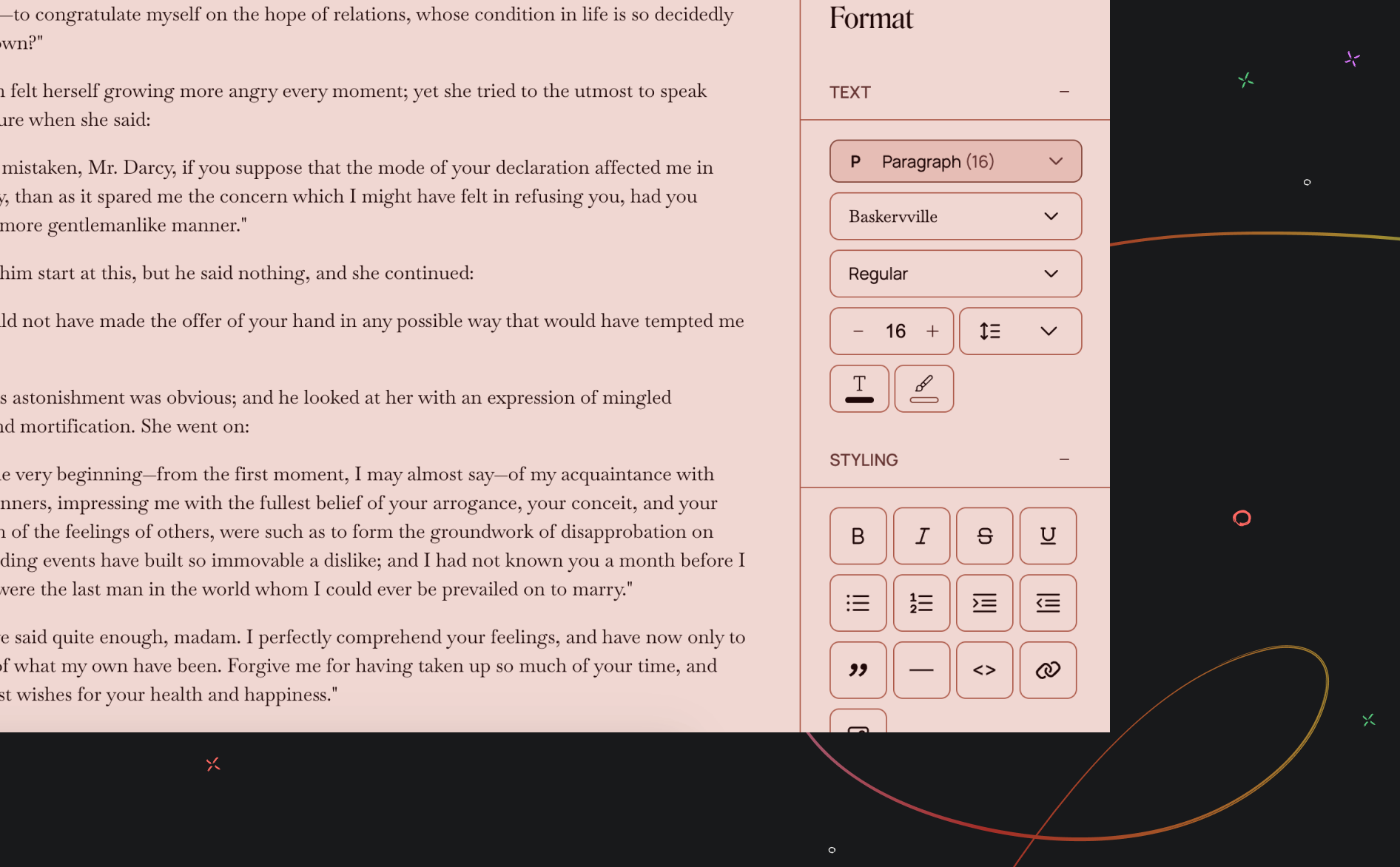
Formatting options
Text
Apply fonts, sizes and weights
Modify specific style levels (e.g. headings, captions)
Adjust spacing and line height
Add text colors and text highlights
Styling
Add emphases (bold, italic, underline, etc.)
Create bulleted or numbered lists
Indent/unindent text
Add quotes, dividers, page breaks, hyperlinks, code
Apply spoilers to hide text in the Reader
Apply clear formatting to remove all applied styling (e.g. bold, italics, underline, color) from selected text, returning it to the default style.
You can also use a variety of keyboard and markdown shortcuts.
Alignment
Set your text's alignment (left, center, right, justified)
Pages
Pages let you switch from a pageless view to a structured print-style layout. You can edit the settings for pages under the Layout section in the panel, and selecting the Pages view. Learn more about pages.
Global styling
You can choose to format with granular styling by selecting the text you want to format, or global styling. With global styling, you can choose whether a formatting change should apply document-wide.
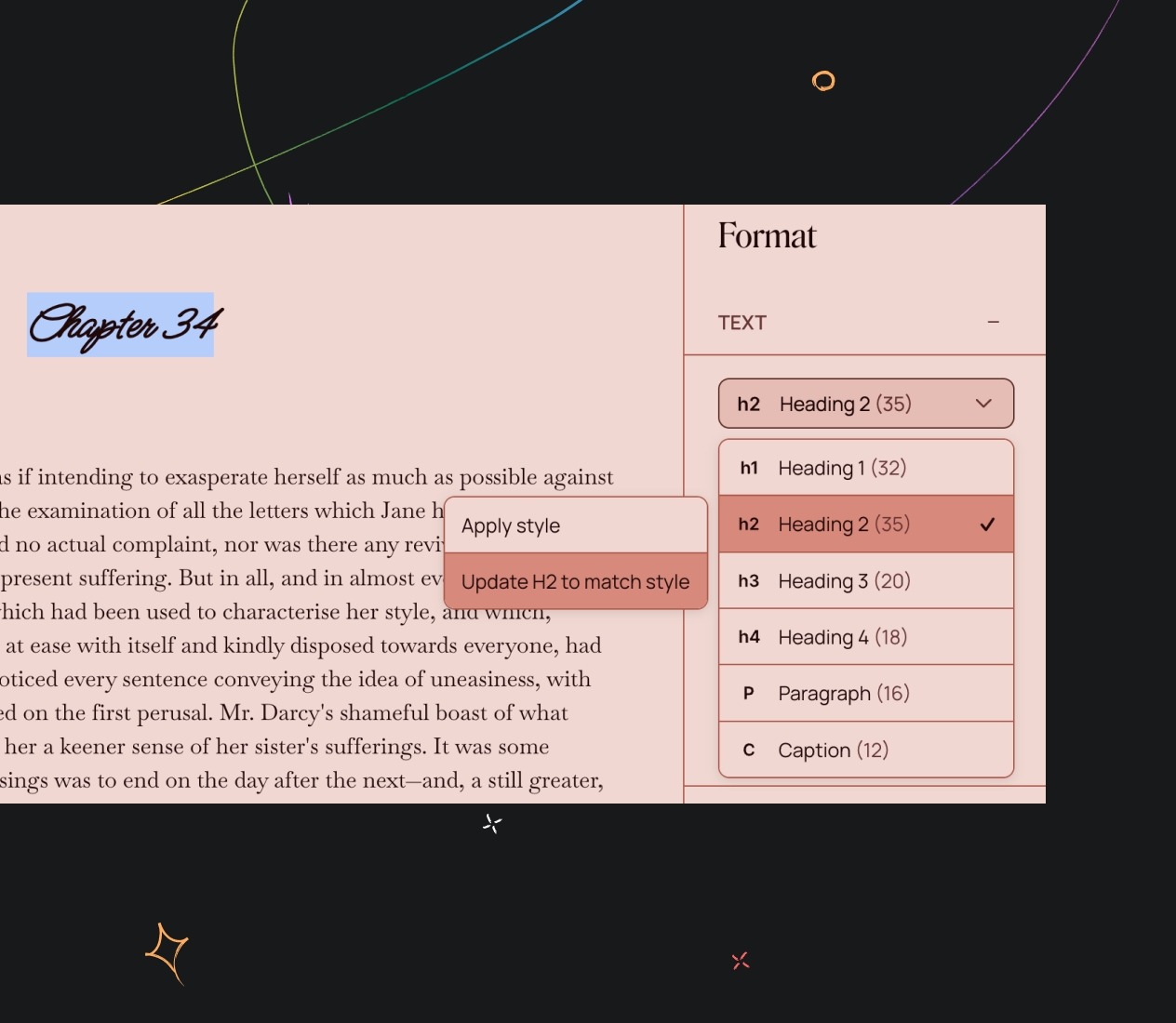
To change a style everywhere in your document:
Select the text (e.g., Heading 2) you want to update
Apply your formatting changes (font, size, spacing, color, etc.)
Open the Style menu, choose Update (Heading 2) to match style
All paragraphs using that style will immediately update to match the formatting you just applied.
Note: Only Text settings are included in global styles. Styling decorations (e.g. bold, italics, underline) do not apply to global styles.
Document appearance and spacing
Ellipsus' spacing settings work like the ones you’ll find in other writing tools. In most cases, the number and type of breaks used in imported documents, copy/pasted text, or exports should cleanly transfer to and from other tools.
There are two main settings that control your document's spacing:
Line height controls the amount of space between lines within the same paragraph.
Paragraph spacing controls the amount of space between one paragraph and the next.
If you want your document to appear single-spaced or double-spaced, adjust the line height setting:
Single-spaced text uses a smaller line height
Double-spaced text uses a larger line height
If your paragraphs look too far apart after changing line height, or you want a visual empty line between paragraphs—instead of pressing "Enter" multiple times to induce paragraph spacing, check your paragraph spacing setting.
Document defaults
With Document defaults, you can set your preferred font, font size, spacing, alignment, and layout for every new document or draft you create. Learn more about Document defaults here.
Was this article helpful?
That’s Great!
Thank you for your feedback
Sorry! We couldn't be helpful
Thank you for your feedback
Feedback sent
We appreciate your effort and will try to fix the article