Document creation and management takes place in your dashboard.
TABLE OF CONTENTS
To create a new document:
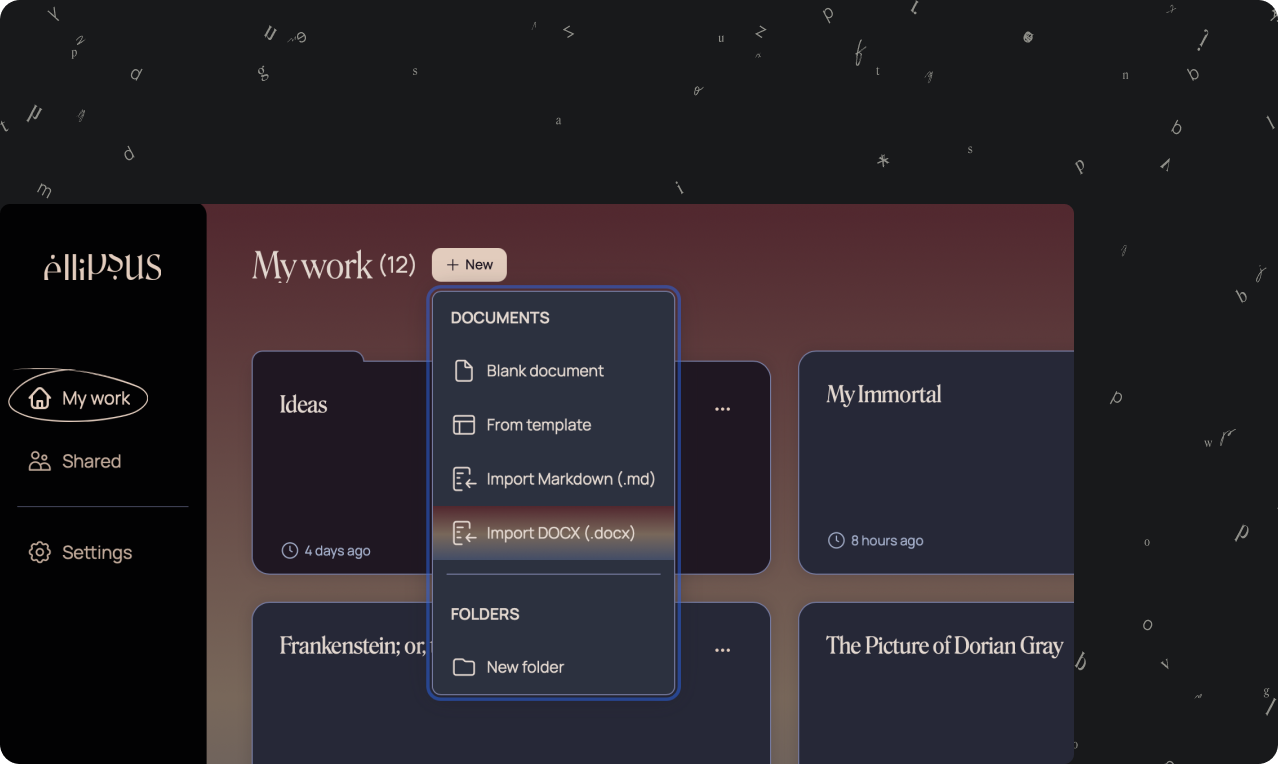
Click the + New button in the top-left corner of your dashboard
Choose from the dropdown menu:
Blank document
From template
Import Markdown (.md)
Blank document
Choose Blank document to start from scratch. You can begin typing immediately, and your changes will save automatically.
Once you’re in the editor, check out:
Format your document for styling options
Create and merge drafts to experiment with versions or solicit feedback without overwriting your work
Create from template
Select From template to open the template picker. You’ll find detailed templates for world-building, story outlines, character sheets, relationship trackers, and more.
Just click a template to open it as a new document—then write, edit, collaborate, or draft as usual.
Import an existing document
Have something (or a lot of things) you’ve written elsewhere? Currently, Ellipsus supports .docx and Markdown (.md) import.
Both options are available in the same dropdown menu when creating a new document. To import a file:
Open your dashboard
Click or tap + New
Choose either .docx or Markdown (.md)
Select a file (or multiple files) from your computer or phone.
After importing your document, you can update your fonts and paragraph spacing and clean up extra line and paragraph breaks by displaying invisible characters.
.docx vs. .md: what’s the difference?
.docx
.docx import preserves your formatting automatically, including:
Styling (bold, italics, headings, colors, etc.)
Paragraph spacing
Images
If you're importing from Google Docs or Microsoft Word, this is usually the quickest and easiest option.
Markdown (.md)
If you’ve used Discord or Slack formatting (like **bold** or *italics*), you’ve already used basic Markdown. Markdown can handle long, but simple, text files, but images can not be imported and will need to be uploaded again after import.
Unsupported elements
Unsupported elements such as tables, charts, and comments will not be included in imported files. Additionally, some complex layouts or highly customized formatting may need light cleanup after import. If something doesn’t look quite right, you can adjust styles directly in Ellipsus once the file is uploaded.
Was this article helpful?
That’s Great!
Thank you for your feedback
Sorry! We couldn't be helpful
Thank you for your feedback
Feedback sent
We appreciate your effort and will try to fix the article