If you're working in a draft and would like to make that draft your main document, you can merge the draft into the document. You can also compare a draft and the main document without merging them.
Note: It is not currently possible to compare two drafts, or to merge a draft into another draft.
Compare a draft and the main document
If you'd like to see the changes between a draft and the main document:
Navigate to the draft you want to merge
Select Compare changes from the three dots menu of the draft card
This opens the compare screen, where you'll see:
Left side: your active draft
Right side: the main document
Color highlights will show what has changed and will be impacted if merged:
Text highlighted in green is new in the draft will be added to the main document.
Text highlighted in red has been deleted or altered in the draft and will be removed from the main document.
Text that is not highlighted will be unchanged.
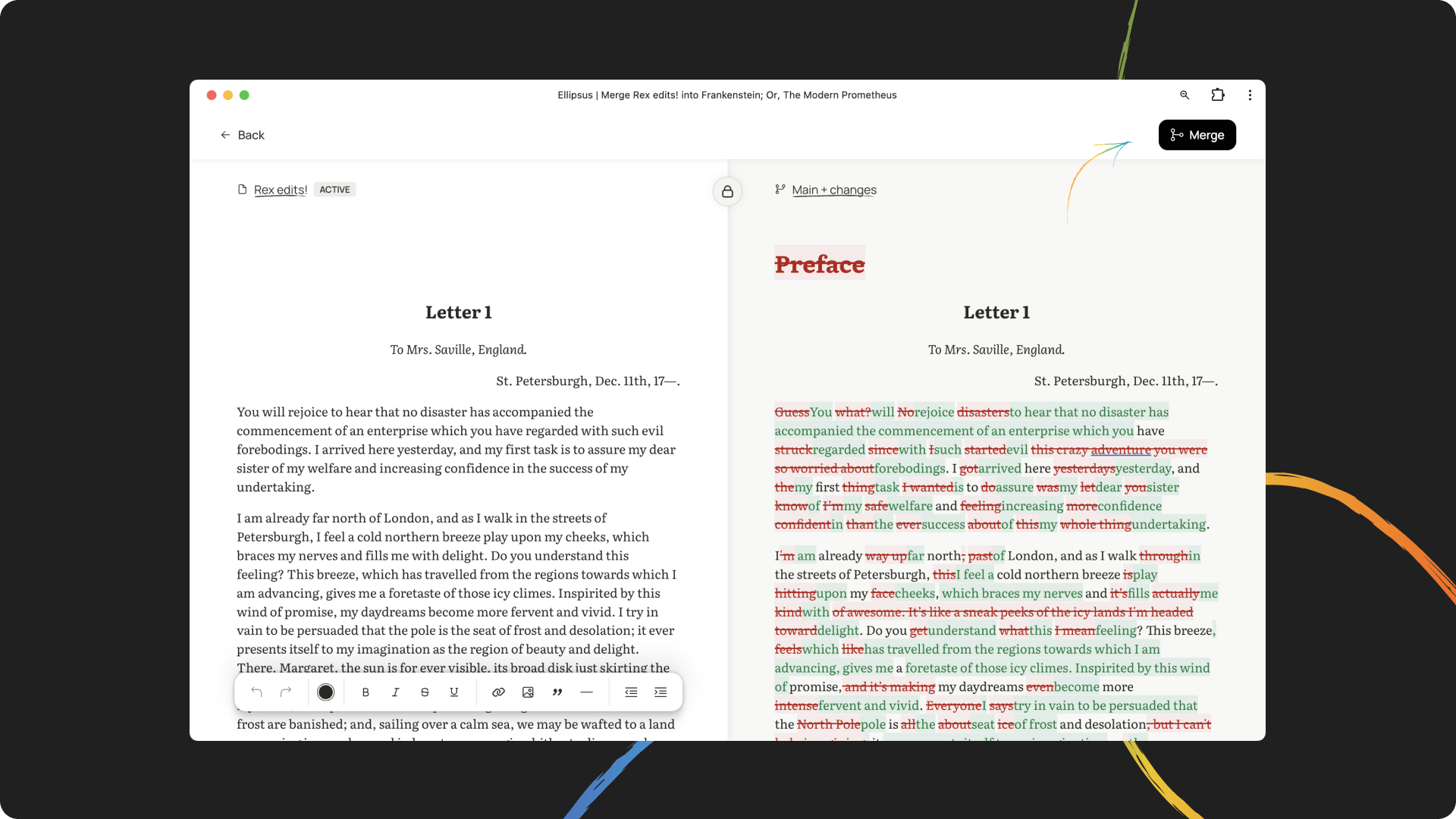
Review both screens to see how your draft differs from the original document.
If you want to overwrite the main document with the contents of your selected draft, click Merge in the top right and follow the on-screen instructions.
Note: Once a draft is merged, it becomes read-only. You can still view or duplicate it, but it can no longer be edited.
Merging with comments
When merging a draft, comments (including resolved comments) and their replies will be automatically carried over to the main document. In the case of overlapping comments (i.e. if there is a different comment connected to the same text in the draft you're merging) a comment in a draft will overwrite a comment in the main document linked to the same portion of text.
Note: Comments in Ellipsus are a little fragile—if you remove or heavily alter the text they're connected to, they will get disconnected. You'll still be able to find them in the comments panel, but they'll no longer be attached to the text.
Was this article helpful?
That’s Great!
Thank you for your feedback
Sorry! We couldn't be helpful
Thank you for your feedback
Feedback sent
We appreciate your effort and will try to fix the article